Which project is stuck right now? The answer may be spread across a meeting transcript, a later email and a project note that still describes last week's situation. Obsidian properties and a Bases table can bring it into one view, with an AI assistant proposing updates and a person approving them.
Let's imagine we're planning to refresh our website. Here's how we'd do that in Obsidian. We'll set up one project note, bring in one meeting excerpt and one email, review the update they support and build a table that shows what needs attention. We'll do all of it by hand, copying approved excerpts into an assistant and editing the note ourselves, so no file connection or custom skill is involved.
Watch the project-status workflow for a demonstration with fictional client data. Our website refresh is a separate fictional illustration written for this guide; its project, source excerpts and field values are not taken from the video. The screenshots show Obsidian 1.15 on a Mac, in a practice vault with community plugins turned off, so your sidebar will look different.
1. Set up one project record
We start with a folder called Projects. We right-click it, choose New note and name the note Website refresh.
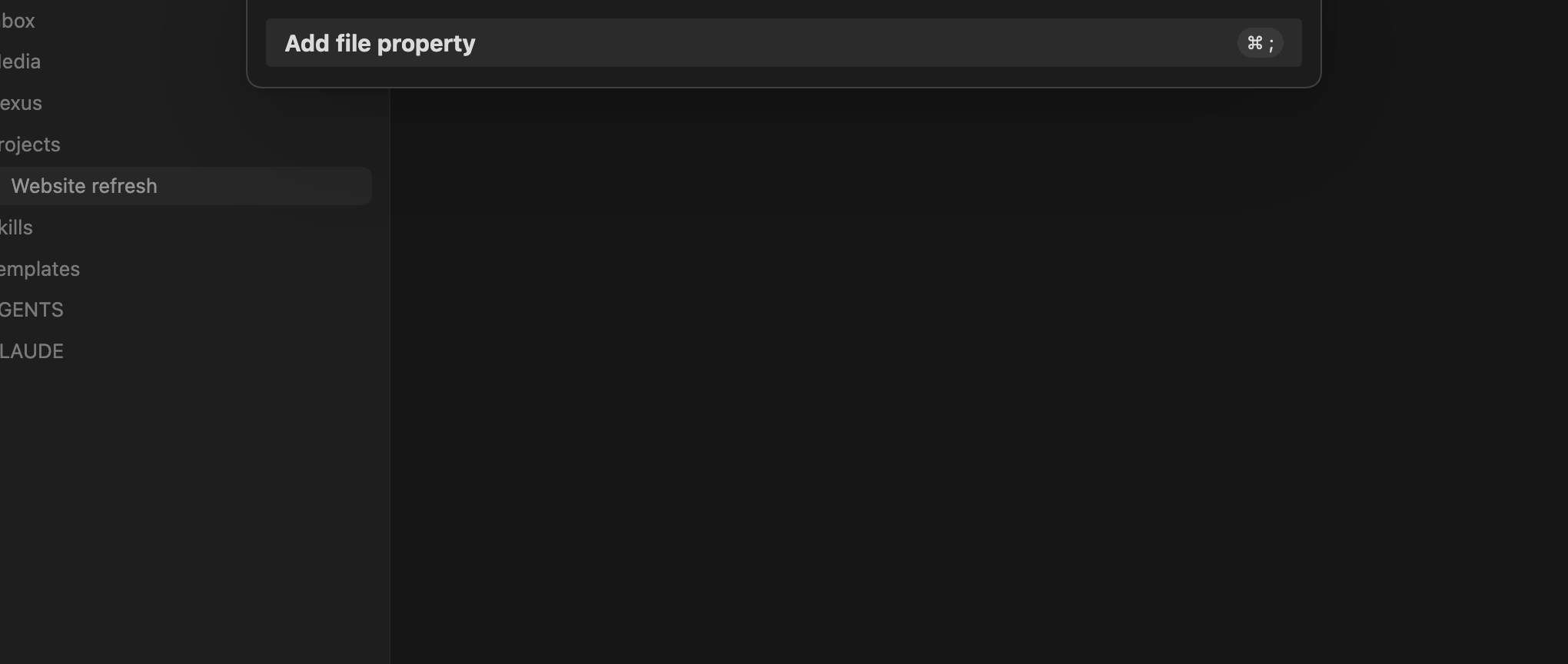
Next we add the fields we want to track. We open the Command palette with Cmd+P (Ctrl+P on Windows and Linux) and choose Add file property. Obsidian also shows a Cmd+; shortcut for this command. We repeat that for each row below.
These are fields we chose for this example, not a required schema from the video. Obsidian's properties guide covers the feature in more detail.
| Property | Starting value | What it tells us |
|---|---|---|
| status | active | The project's current work state |
| next_action | Finish the homepage draft | A concrete next step |
| next_action_owner | Designer | Who owns that step |
| waiting_on | Left empty | The dependency, if one exists |
| last_reviewed | 2026-11-02 | When we last checked the record |
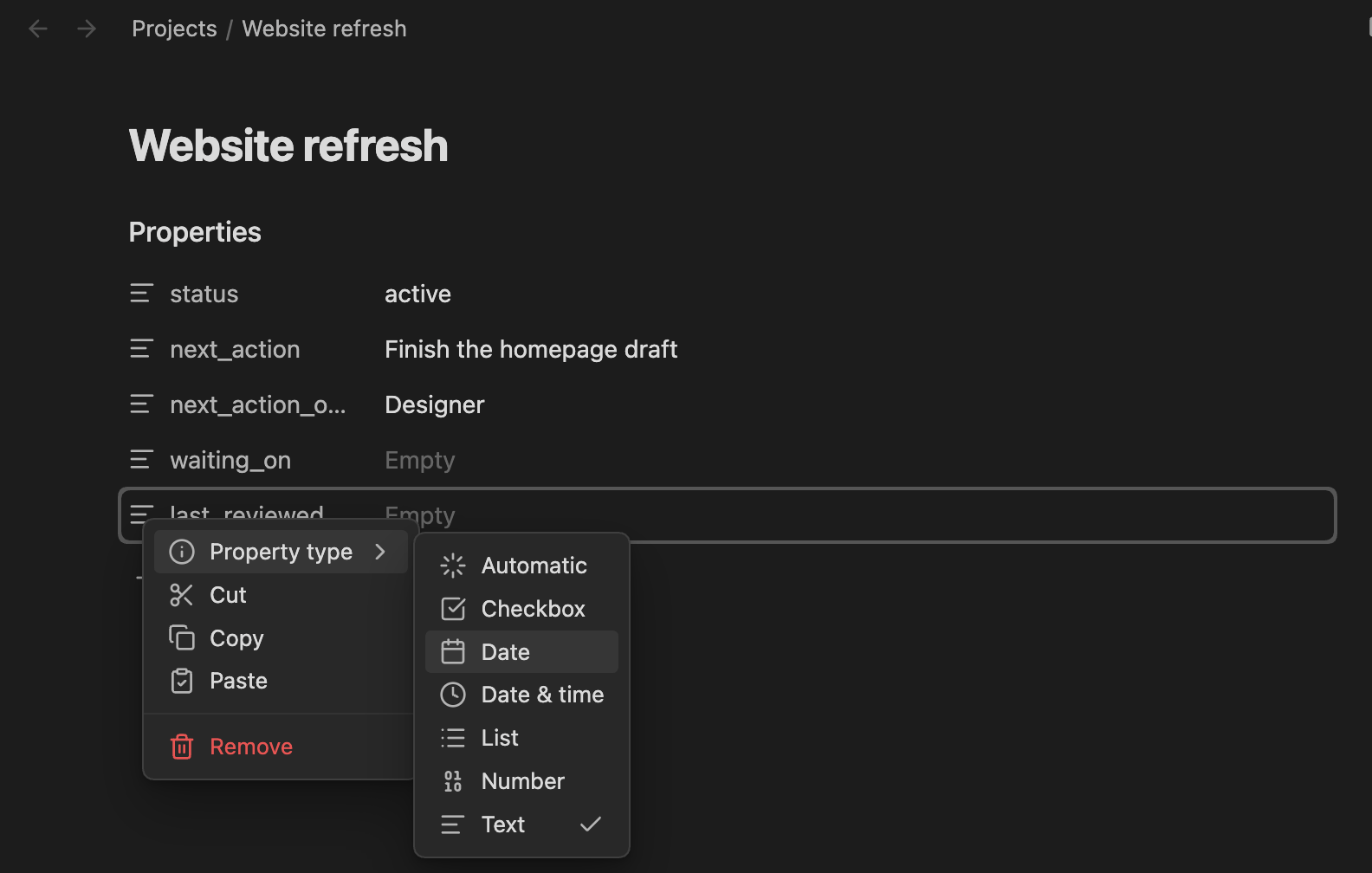
The first four work as Text. For last_reviewed, we click the icon beside the property name, open Property type and choose Date.
That gives us our starting record:
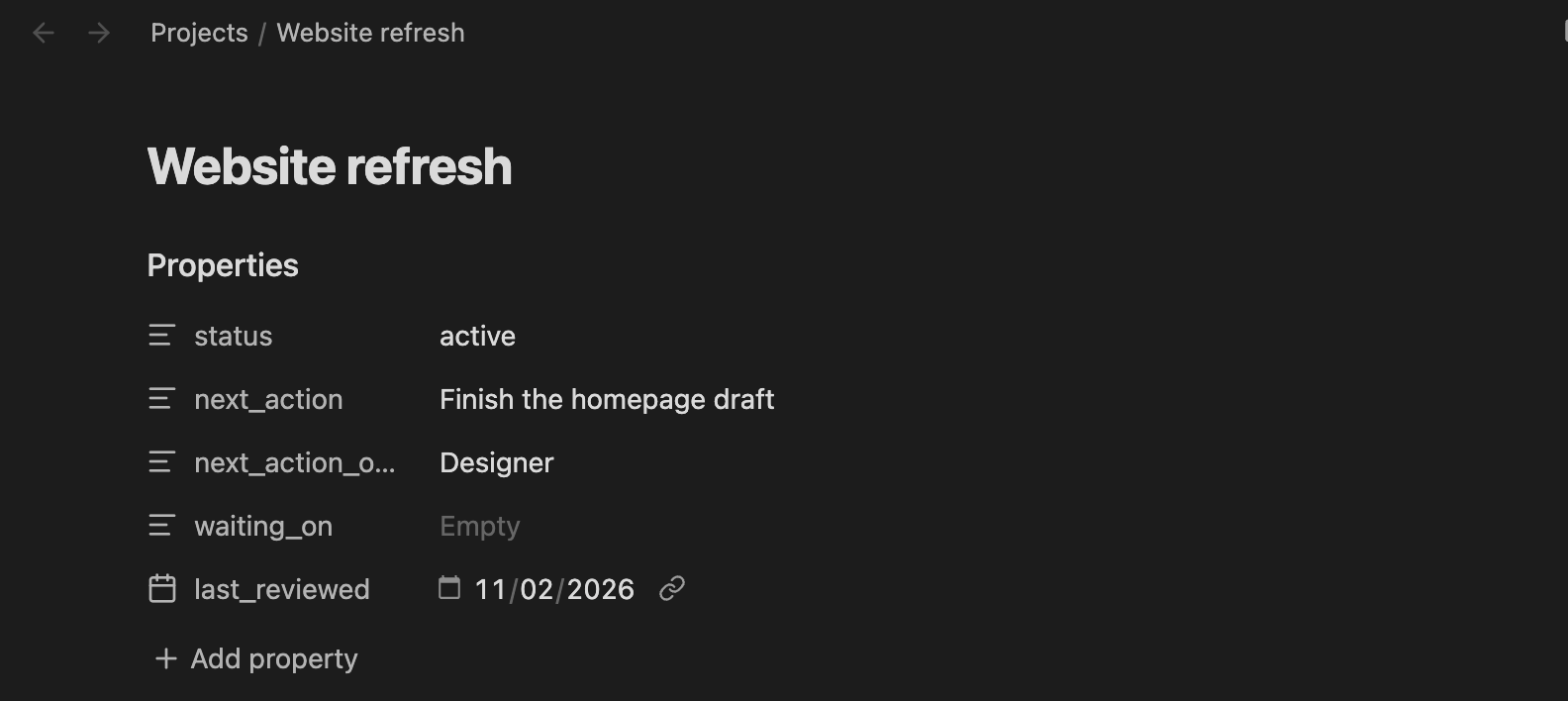
The explanation and source references will go in the note body. A file's modification date doesn't establish when we checked the project's status, which is why last_reviewed gets its own field.
We'll use three status labels for this first review. active means work can proceed. waiting means an input is expected and hasn't missed its agreed date. blocked means the next step can't proceed and the agreed date for the needed input has passed. These are example definitions, and any team can adapt them. If no date was agreed, we'd record that uncertainty rather than invent one.
2. Give our assistant the new information
In our example, we're reviewing the project on November 4. Two new sources have come in:
- Meeting excerpt, November 2: "The homepage draft is finished. The project lead will send one combined set of feedback by November 3. The designer needs that feedback before revisions can start."
- Email excerpt, November 4: "We haven't sent the combined feedback yet. Please hold revisions until it arrives."
We copy the current project record, our status definitions and both labeled excerpts into an AI assistant we're permitted to use for this information, along with the review date. Then we ask:
Compare this project record with the meeting and email excerpts. Propose updates to status, next_action, next_action_owner and waiting_on. For each change, identify the supporting excerpt. Use my status definitions, flag missing or conflicting information, and keep project status separate from individual tasks. Do not change files or contact anyone.
We're keeping this first attempt manual. The assistant proposes changes, and we edit Obsidian ourselves. Connected file editing would also need supported file access, suitable permissions and instructions to wait for approval.
3. Review the proposal and save our decision
Our sources support this update, so it's what we'd look for in the assistant's proposal:
| Property | Proposed value | Reason |
|---|---|---|
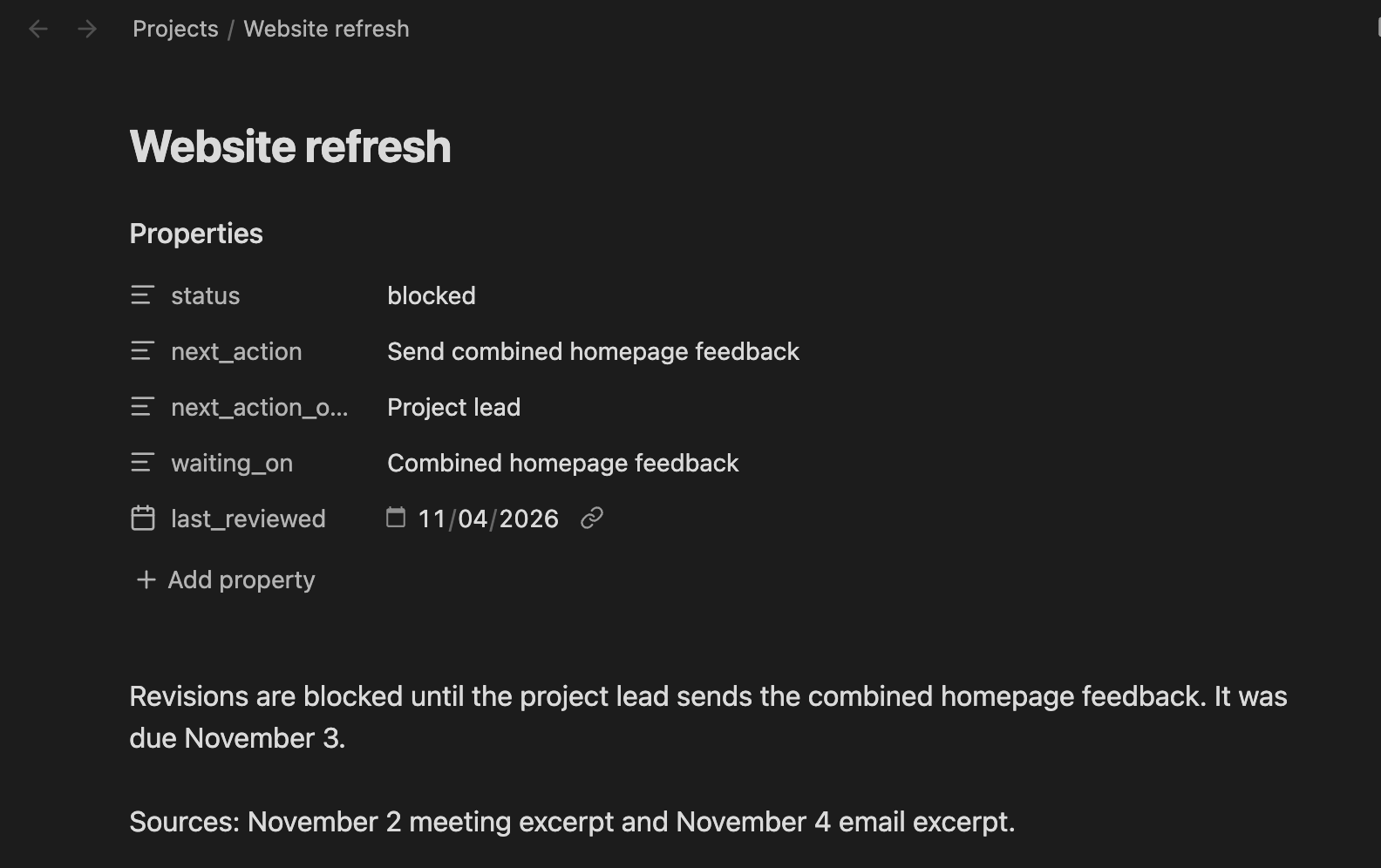
| status | blocked | Revisions need feedback; its agreed November 3 date has passed |
| next_action | Send combined homepage feedback | The draft is finished; feedback is the next dependency |
| next_action_owner | Project lead | The meeting assigned the feedback to this role |
| waiting_on | Combined homepage feedback | The email says revisions must wait for it |
Before accepting anything, we check it against the excerpts. Has another message already resolved the delay? Does the project lead still own the feedback? If the evidence were incomplete, we'd settle that question before changing the record.
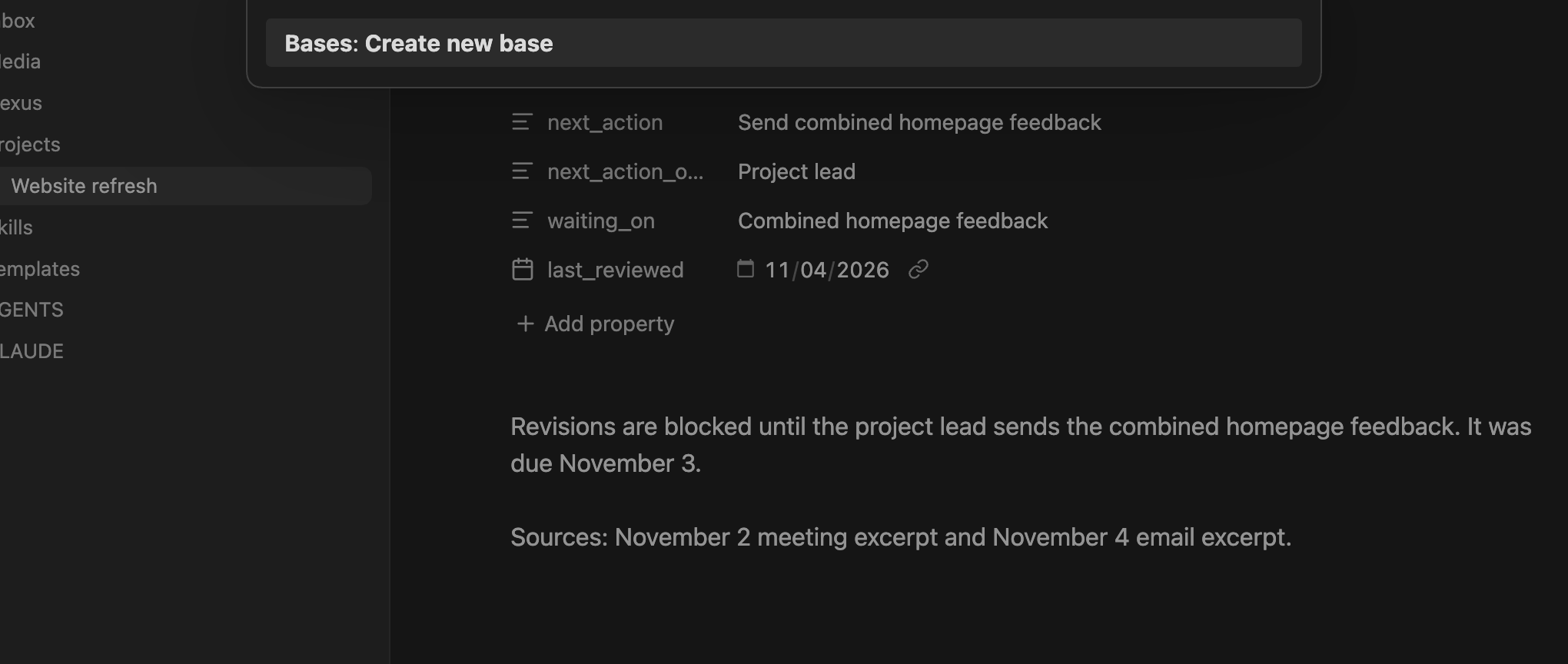
Our evidence holds up, so we enter the values, set last_reviewed to November 4 and add a short explanation with references to the meeting and email in the note body. Then we reopen the note to confirm the values saved. The record now explains both the blocker and the next action.
A new task doesn't always justify changing project status. If a completed onboarding project gained a follow-up task, we'd decide whether it needs to reopen or the task can stay on someone's to-do list. That distinction is part of the accompanying video's review workflow.
The reviewed project note is the source for both our Bases view and our AI questions.
4. Build a Bases view of our projects
Bases is an Obsidian core plugin. Its table displays files as rows and properties as columns, and the underlying information stays in our notes.
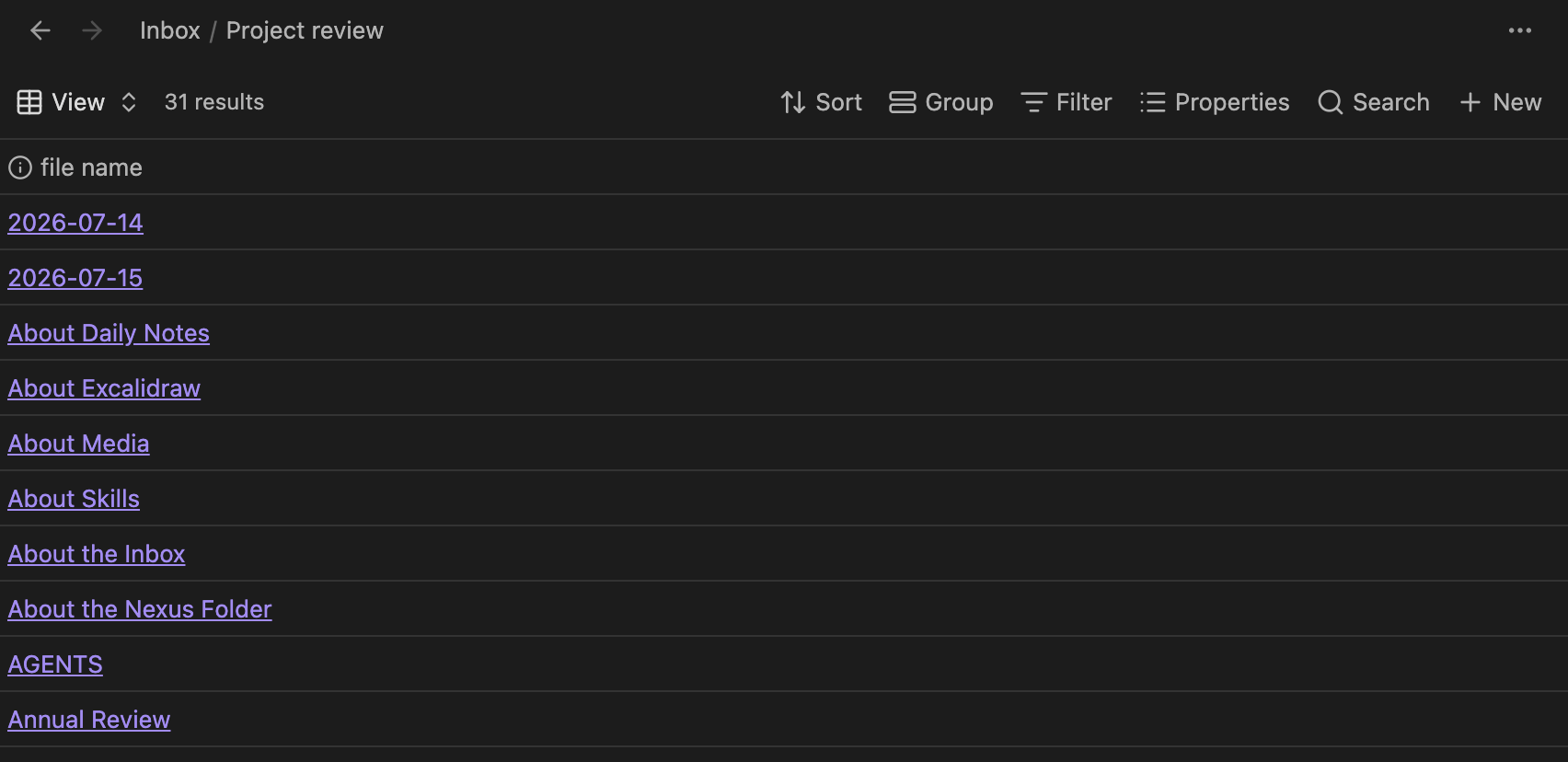
We open the Command palette, choose Bases: Create new base and name the base Project review. Create a base has more on this step.
The new base opens as a table of every file in the vault, which is 31 results in our practice vault. It landed in the Inbox folder, our vault's default location for new files, but where a base lives doesn't limit what it shows.
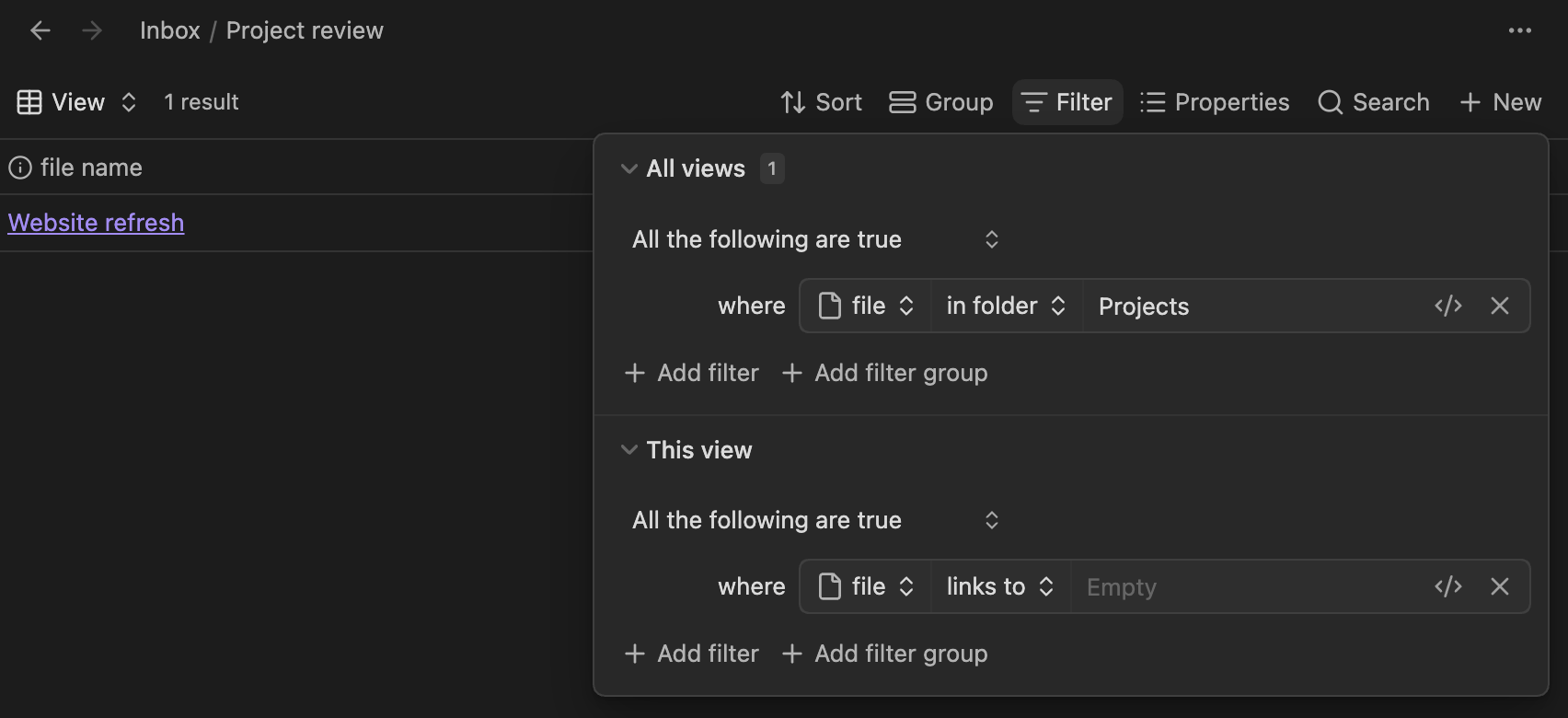
So we narrow it. We click Filter, expand All views and set the condition to file in folder Projects. The table drops to one result, Website refresh.
To see our fields, we click Properties and tick status, next_action, next_action_owner, waiting_on and last_reviewed.
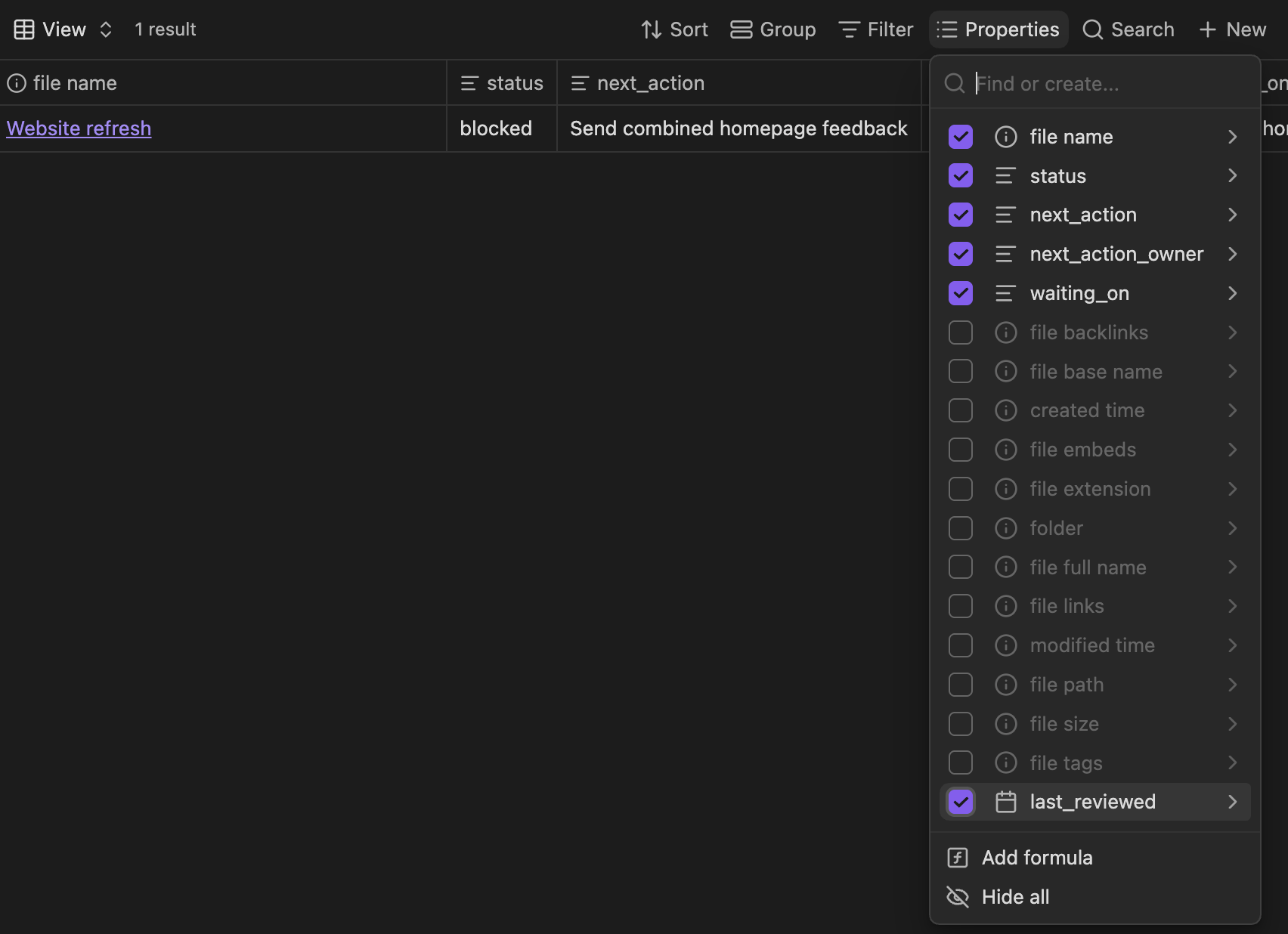
Next comes the condition that answers our question. Under Filter, in This view, we set the condition to status is blocked and keep the folder restriction in place. The view controls guide explains these filters and display settings.
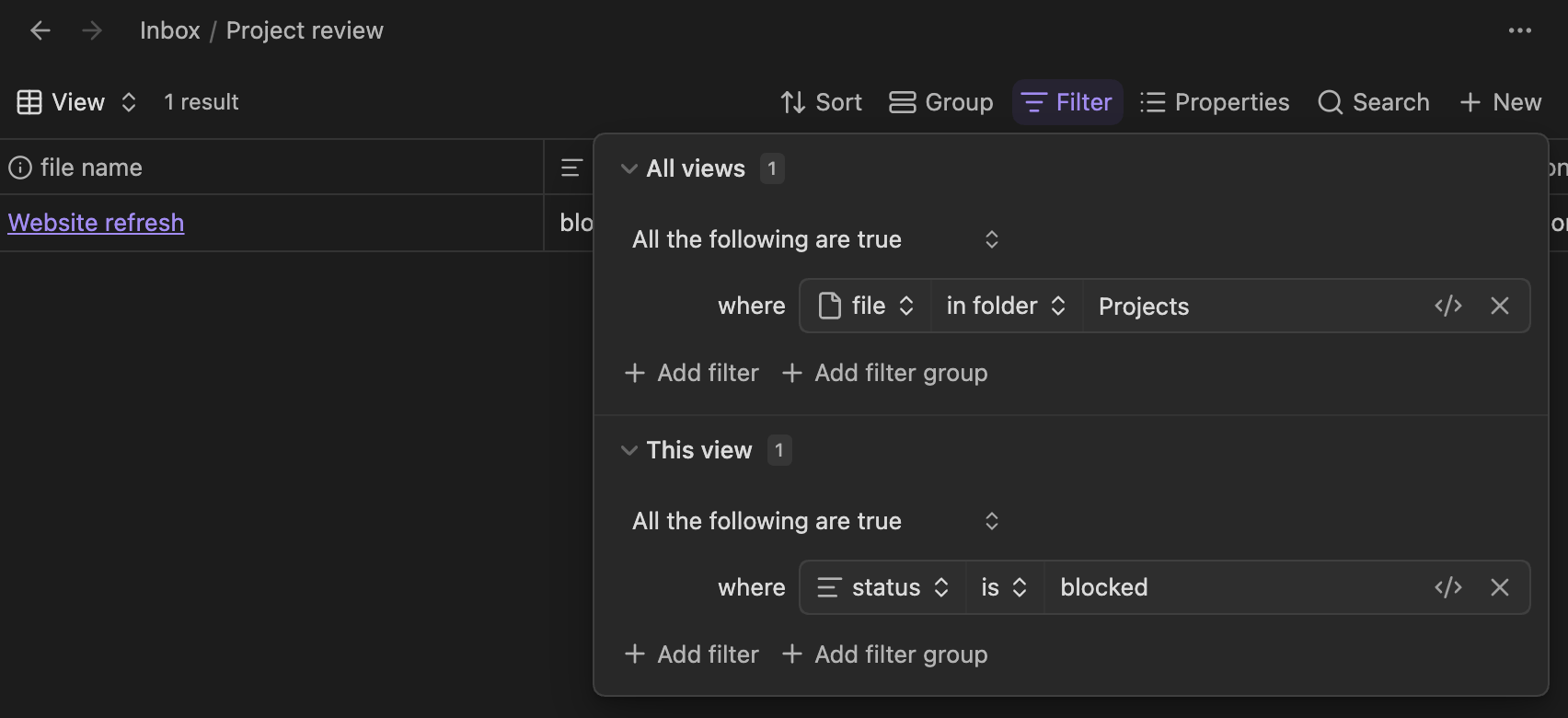
Website refresh stays visible because it's in Projects and its status is blocked. We tested this with a second note whose status was active, and the view left it out. To see the source explanation, we open the note from the table.

For a broader review, we'd remove the status condition and keep the folder filter. That lets us inspect waiting projects and incomplete records too. An empty status can leave a project out of the blocked view without making it healthy.
5. Ask a question the record can answer
Finally, we copy the updated project record and its source excerpts into our assistant and ask:
Which project needs attention, and why? Show its recorded blocker, next action, owner and supporting source. Flag missing or contradictory information. Do not change status or contact anyone.
An evidence-backed answer would identify Website refresh, explain that revisions are blocked by the overdue combined feedback, and name the project lead as the owner of the next action. If the answer said the designer must finish the draft, it would have missed the source update.
What happens next is still our decision. When new feedback arrives, we review it and update the record again. Once we can trace an answer back to the saved notes and sources, we can repeat the process with more projects.
Build your own second brain
If this walkthrough exposes gaps in how you organize project notes, Your AI Second Brain covers Obsidian properties, Bases and templates, alongside supported AI connections and reusable skills. The manual review above works as a starting point, and the course helps you build your knowledge foundation and explore an assistant setup that fits your work.
See the course curriculum and what's included. Use code SECONDBRAIN2026 for 50% off through December 31, 2026.
Frequently Asked Questions
Do I need an AI connection to Obsidian?
Not for the manual route in this guide. We supplied approved excerpts to the assistant and made the accepted changes ourselves. Direct file editing needs a separate supported connection and permissions.
Is a Base a separate project database?
The project information stays in the notes and their properties. The base defines a view of those files, so updating a note changes the information available to that view.
Can AI decide whether a project is blocked?
It can propose a status using your definitions and the evidence you provide. A person still needs to resolve ambiguity and approve changes. The blocked label in this example follows an explicit dependency and an agreed date that has passed.